Mapping a feed
How to connect Craft data to a platform’s attributes.
Choosing what the feed reads#
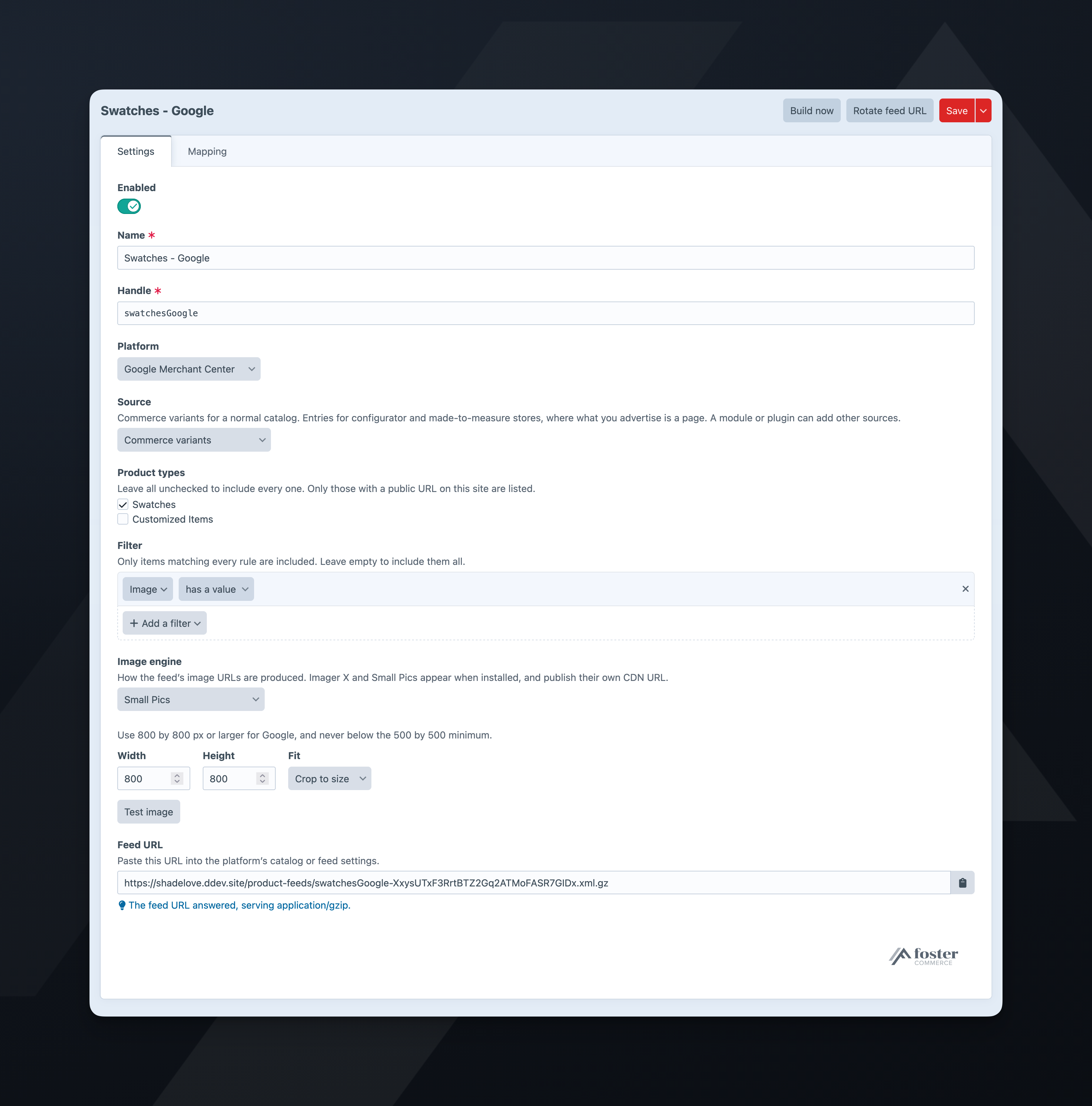
On the Settings tab, a variant feed lists your Product types and an entry feed lists your Entry types, grouped by section. Leave every box unchecked to include every type with a public URL on this site.
An entry type used by two sections is listed under each. Selecting “General Page” under Pages includes only the Pages entries of that type.
Singles are not listed, and neither is a type without a public URL on this site.
A feed on a custom source, one a module or plugin adds to the Source menu, shows neither list and no Filter. The source’s code selects the elements.
What you select here determines which fields the Mapping tab offers.
The Mapping tab#
Every attribute the platform defines gets a row on the Mapping tab. A row the plugin or the source sets shows who sets it, such as “Set by the Commerce variants source”, in place of a dropdown. Every other row has a dropdown for where its value comes from:
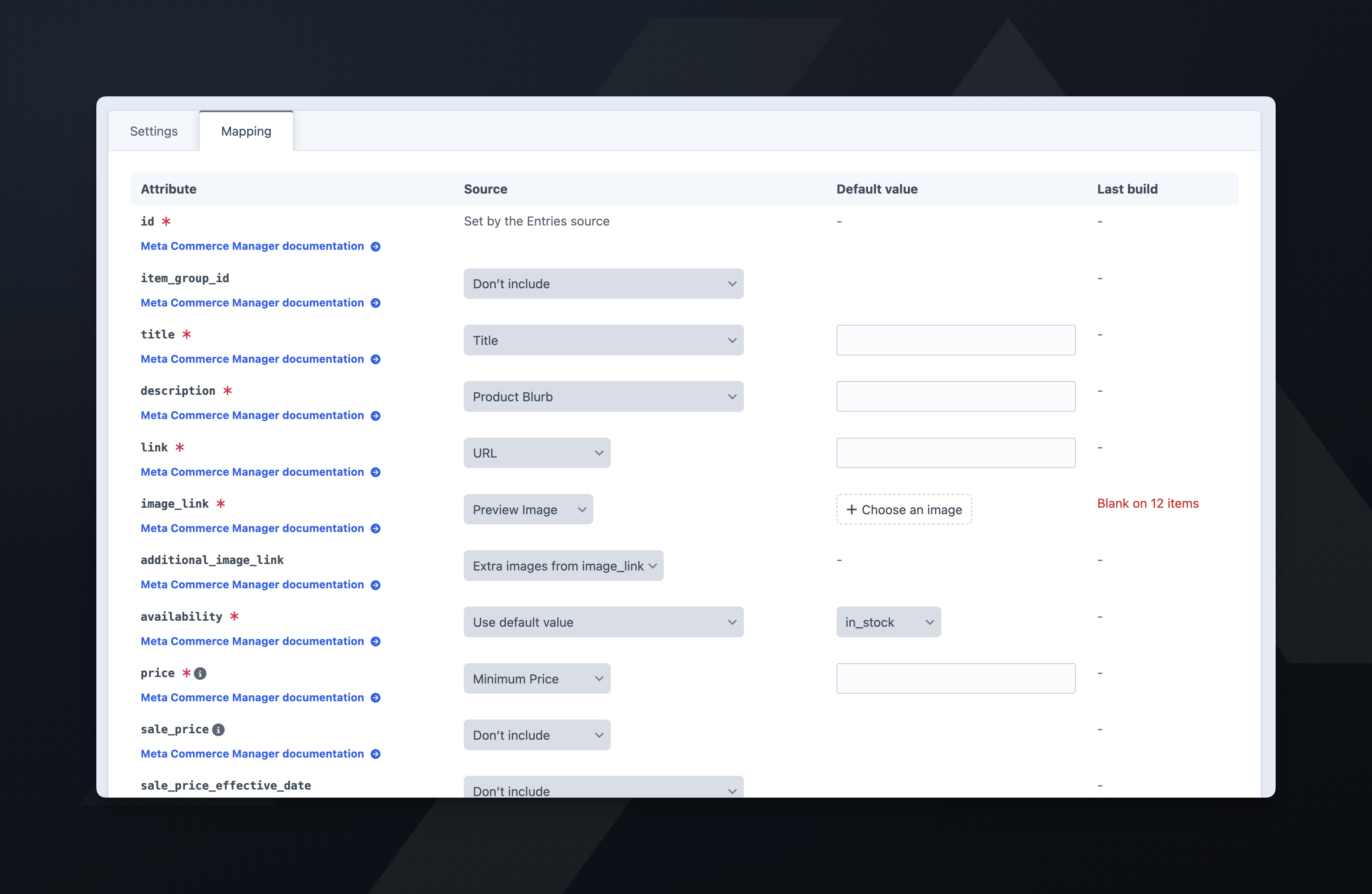
- Don’t include: the attribute is left out. A required attribute has no Don’t include; its row starts blank until you choose where its value comes from.
- Use default value: the same value for every item, set in the Default value column. Use it for
condition, and forbrandon a single-brand store. Onimage_linkit is an asset picker rather than a text box. - Use Twig value: a Twig template, written in the Default value column and rendered for each item. See Twig values.
- Variant properties / Product properties, or Entry properties on an entry feed: a native value such as the SKU, the product title, or the product URL.
- Variant fields and Product fields, or Entry fields: a Craft field. On a variant feed the variant’s own fields and its product’s fields are listed separately.
On a custom source’s feed, the dropdown lists Properties (title, URL, slug, and ID) and Fields.
The Default value box appears with Use default value, and with a property or field. With a property or field, the default applies to an item whose value is blank.
Each attribute offers a fixed set of field types, and only those types appear in its dropdown:
| Attribute | Field types |
|---|---|
Text attributes, such as title and description |
Plain Text, Number, Dropdown, Radio Buttons, Checkboxes, Lightswitch, Email, Categories, CKEditor |
link |
Plain Text |
image_link, additional_image_link |
Assets |
price, sale_price |
Number, Plain Text |
product_type |
Categories, Plain Text |
Matrix, Table, Date, Link, Money, Entries, Tags, Users, and Color fields are not offered.
On an entry feed, only fields on the entry types you selected are listed.
The dropdowns list fields from the source, platform, and types the feed was last saved with. Save a new feed before mapping it. After you change the source, platform, or types, the table stays hidden until you save again. Saving the feed with a different source replaces the mapping with that source’s defaults.
Fields are listed under the name their field layout gives them, not the field’s global name. One field reused under two handles, such as previewImage and seoImage, appears twice.
Required attributes#
Every shopping platform requires id, title, description, link, image_link, availability, and price, and Meta and TikTok also require brand and condition. A feed does not build until its required attributes are mapped or derived. For the full list per platform, see attributes.
A Klaviyo feed has no availability: it sends stock as the number inventory_quantity, and inventory_policy sets what Klaviyo does with an item at zero stock.
On a variant feed the plugin derives id, item_group_id, price, sale_price, sale_price_effective_date, availability, and inventory_quantity from Commerce, and identifier_exists as well on Google and Microsoft. That leaves title, description, link, and image_link to map, plus brand and condition on a Meta or TikTok feed.
On an entry feed there is no Commerce variant behind the item, so price and availability are yours to map, and are required. You can also map item_group_id, sale_price, and sale_price_effective_date; a Twig value can build a date range from Date fields.
A new variant or entry feed is saved partly mapped: title and link use the product’s or entry’s title and URL, and condition defaults to new. A new entry feed also sets availability to in_stock. A feed on a custom source starts unmapped.
Twig values#
Use Twig value renders a Craft object template for each item, such as {{ title }} in {{ color }}. Use it when a field holds the right data in the wrong shape for an attribute, so the feed can keep its built-in source and platform.
| Variable | Holds |
|---|---|
object |
The variant, the entry, or a custom source’s element. Its properties and fields are also variables of their own, such as title, sku, or product |
item |
On a custom source’s feed, the values the source supplied for this item, such as item.id and item.size |
| Source variables | On a custom source’s feed, any variables the source passes for the item |
The info icon beside each Twig value lists the variables its feed’s source offers.
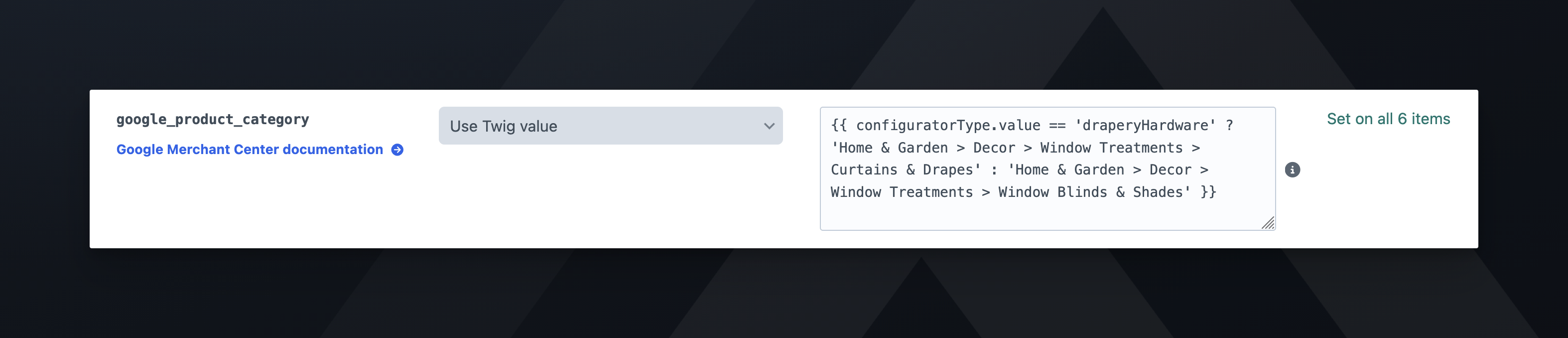
The plugin cleans up the output the same way as a mapped value: it strips markup and cuts text to the attribute’s limit. For an image attribute, the template must output an image URL.
If a template fails for an item, the plugin leaves that item’s attribute blank, logs the first error for each attribute, and continues. An item missing a required attribute is excluded. The Last build column shows how many items failed and the first error. The plugin does not check a template when you save, and Preview items shows the attribute blank without the error.
Twig and the sandbox#
A Twig value has the same access as any other template on the site. Anyone who can edit feeds can read the site’s configuration, such as {{ craft.app.config.db.password }}, and publish it in a public feed. Grant productFeeds:edit only to people you trust with the site’s configuration.
When the site turns on Craft’s enableTwigSandbox setting, templates run in Craft’s sandbox instead. The sandbox blocks the configuration example above, and also blocks Commerce properties read through object, such as {{ object.sku }} and {{ object.product.title }}. Write {{ sku }} and {{ product.title }} instead. Both forms work with the sandbox on or off.
Filtering a feed#
The Filter on the Settings tab is Craft’s condition builder. Add rules to limit the feed to part of its source. One product type can then supply several feeds, such as one per brand or one for items on promotion.
Previewing#
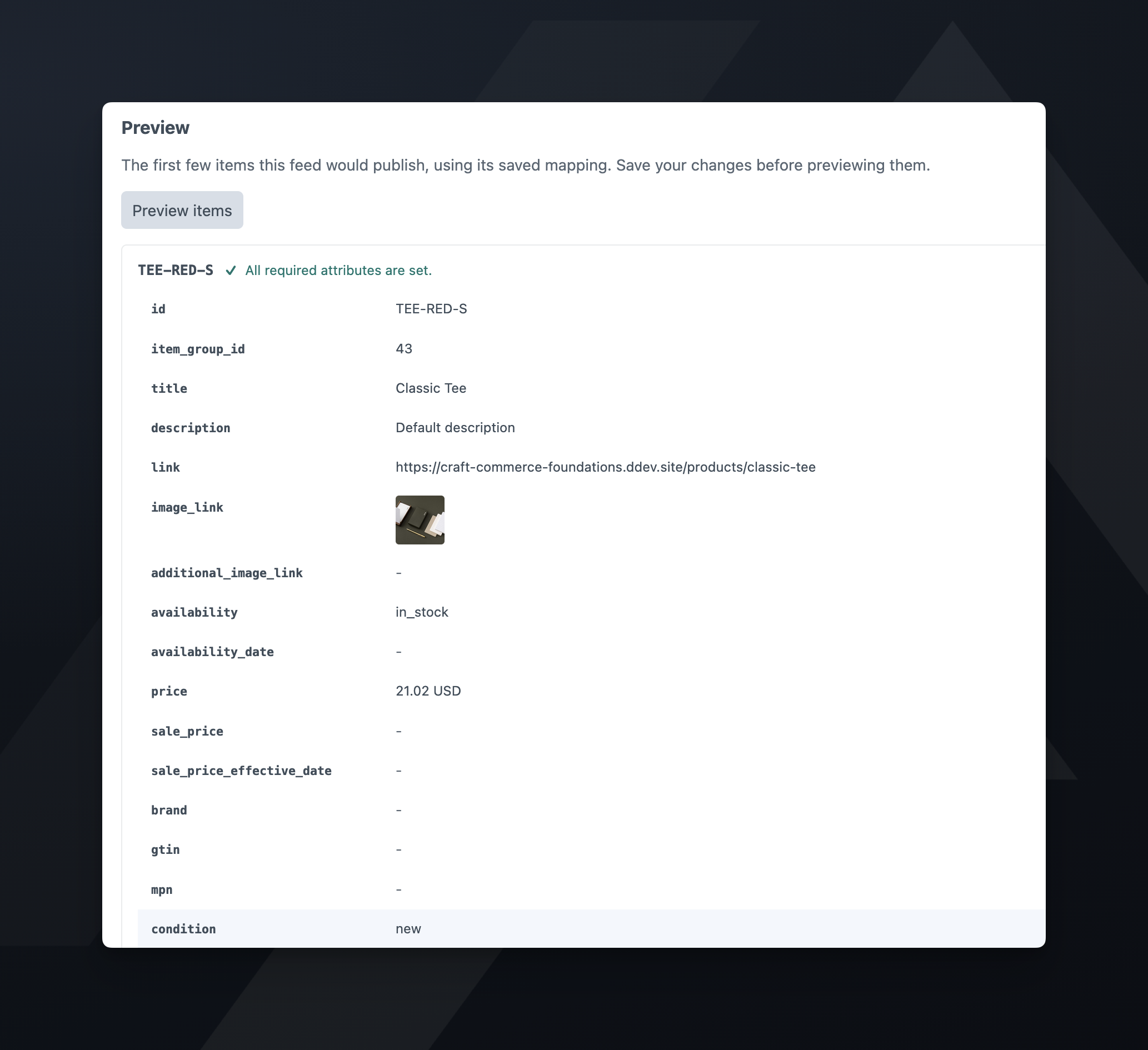
Once a feed is saved, Preview items on the Mapping tab shows the first few items as the feed would publish them. It also lists the items the build would exclude, and why.
The preview reads the feed’s saved mapping, not the one on screen. Save your changes before previewing.
Last build column#
After a build, the Last build column reports how each mapped row did:
| Cell | Meaning |
|---|---|
Set on all 12,483 items |
Every item in the feed had a value. |
Blank on 4,201 items |
You mapped the attribute, and it was blank on that many items. |
Twig error, blank on 3 items |
The Twig value failed on that many items. The first error is shown beneath. |
17 items priced at zero or less |
price and sale_price only. The items stay in the feed. |
Discarded a value that isn’t an absolute URL on 5 items. |
A link held a value that isn’t an absolute http or https URL. The first one is shown beneath. |
Discarded an image URL the site couldn’t resolve on 2 items. Check the site’s base URL. |
An image URL was relative and the site’s base URL isn’t absolute, or the URL isn’t http or https. The first one is shown beneath. |
- |
Not mapped, or the feed has never built. |
Attributes set to Don’t include are not counted.
Excluded items#
An item is excluded when a required attribute is blank, or when an earlier item has the same id. The Excluded items panel lists up to 50 of the items the last build excluded, each with its reason and a link to the element. When the list is longer, Download full list (CSV) has the rest.
The feeds index shows the same count in its Issues column.
Items with no identifiers#
When brand, gtin, and mpn are all blank on an item, a Google or Microsoft feed sends identifier_exists: no.
Meta, Pinterest, and TikTok have no such field. Meta and TikTok require a brand; a Pinterest item with no identifiers is sent without them.
Images#
Map one Assets field to image_link. The first asset becomes the image, and up to 10 more become additional_image_link. A field holding a single image and a field holding many behave the same way.
Microsoft has no additional_image_link, so a Microsoft feed sends only the first image.
To use a fallback image on items whose image field is empty, set image_link to Use default value and pick an asset. The fallback uses the same image engine and transform as a mapped image.
To send a different field’s images as extras, map additional_image_link to its own Assets field. The feed then uses that field’s first 10 assets in place of Extra images from image_link.
An asset with no public URL does not produce an image, and the plugin excludes the item.
The plugin percent-encodes image and product URLs.
Image engine#
Image engine sets the URL the feed sends for image_link:
- None (the asset’s own URL): the URL the asset’s filesystem gives it, with no transform.
- Craft: Craft generates a transform, and the feed sends its URL.
- Imager X or Small Pics: that plugin processes the asset, and the feed sends its CDN URL. Each appears only when the plugin is installed.
With the Craft engine, pick a transform under Craft transform, or pick Custom size and set the width, height, and fit. Either dimension on its own is a valid transform.
Test image resolves image_link for the first item in the feed and fetches the result. It uses the image settings on screen, and the mapping on screen; for a user who can’t edit feeds, it uses the saved mapping. You see the URL, a thumbnail, and whether it is a reachable image, before running a build. Test image appears on a saved feed whose image engine is not None (the asset’s own URL).
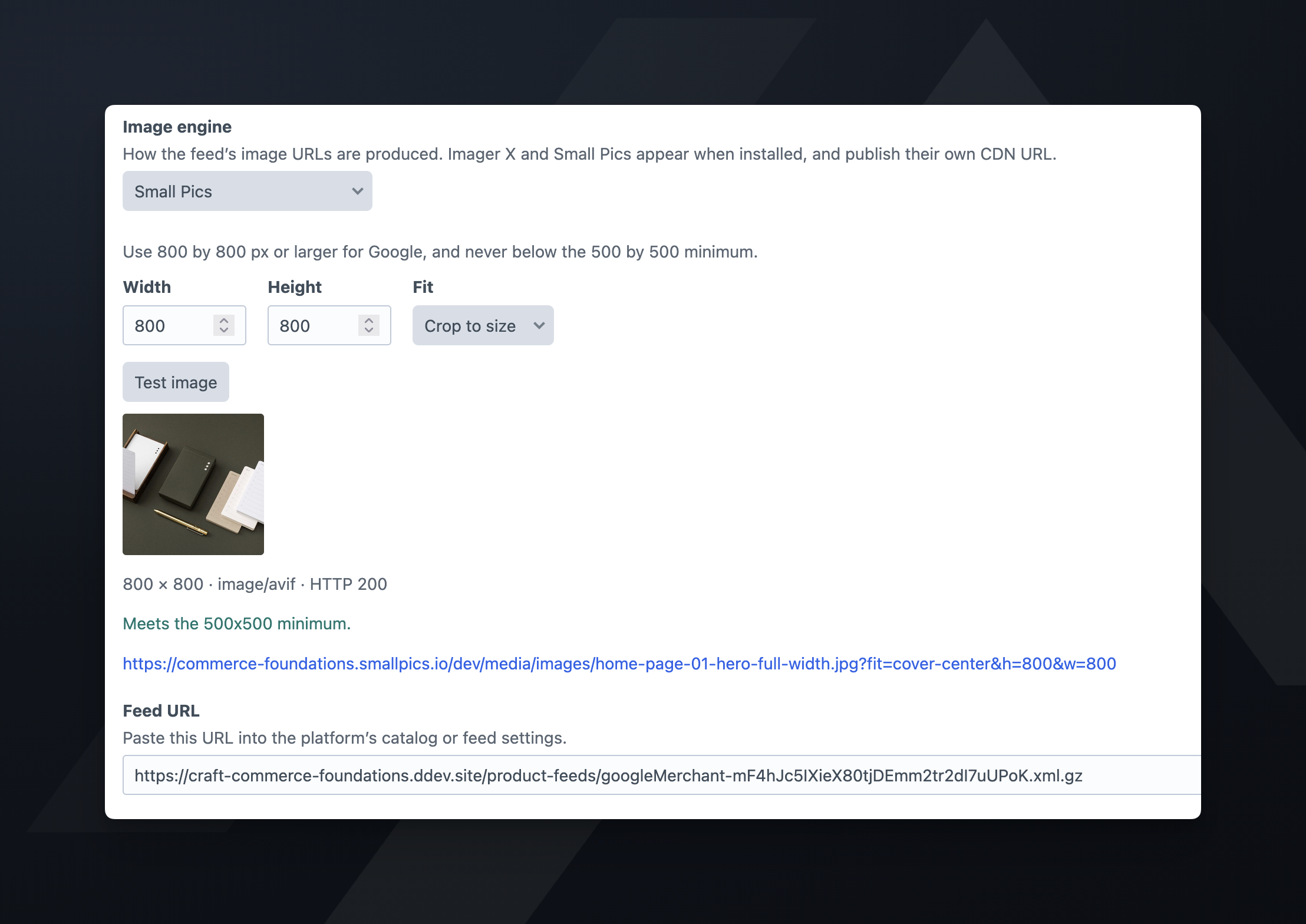
The test reports the image against the platform’s minimum: 500 by 500 for Google, Meta, and TikTok, and 1000 by 1500 for Pinterest. Microsoft documents no minimum. The check compares only width and height. A landscape 2000 by 1500 image passes Pinterest’s check but is the wrong shape for Pinterest.
Map image_link before you click Test image.
Prices#
Prices come from Commerce, in the currency of the site’s Commerce store, and are the price a logged-out shopper sees. The feed does not include catalog pricing scoped to a customer group.
On an entry feed, map price to a Number field. The plugin formats the value in the store’s currency, so 199 appears in the feed as 199.00 USD. A field holding text such as “from 199” has no usable price, and the item is excluded.
sale_price appears only when a promotional price is lower than the price. Stores using the Sales system also get sale_price_effective_date. Stores on Catalog Pricing Rules do not, because Commerce does not keep each rule’s dates when it resolves a variant’s price.
If items come back priced at zero, see troubleshooting.