Activity log
Where to find a record of past imports, and how to keep it from growing forever. Audience: anyone running imports.
What gets logged
Every import attempt writes one row to the activity log, success or failure:
- Successful imports (green status dot): “Imported new product {title} into {product type}” or “Imported existing product {title} into {product type}”. The product title is a link to the product edit page.
- Failed imports (red status dot): “Failed to import {filename}: {error message}”. The error message is the same one the import threw, useful for diagnosing what went wrong.
Each row records the user who triggered the import and the date.
Where to find it
Variant Manager -> Dashboard.
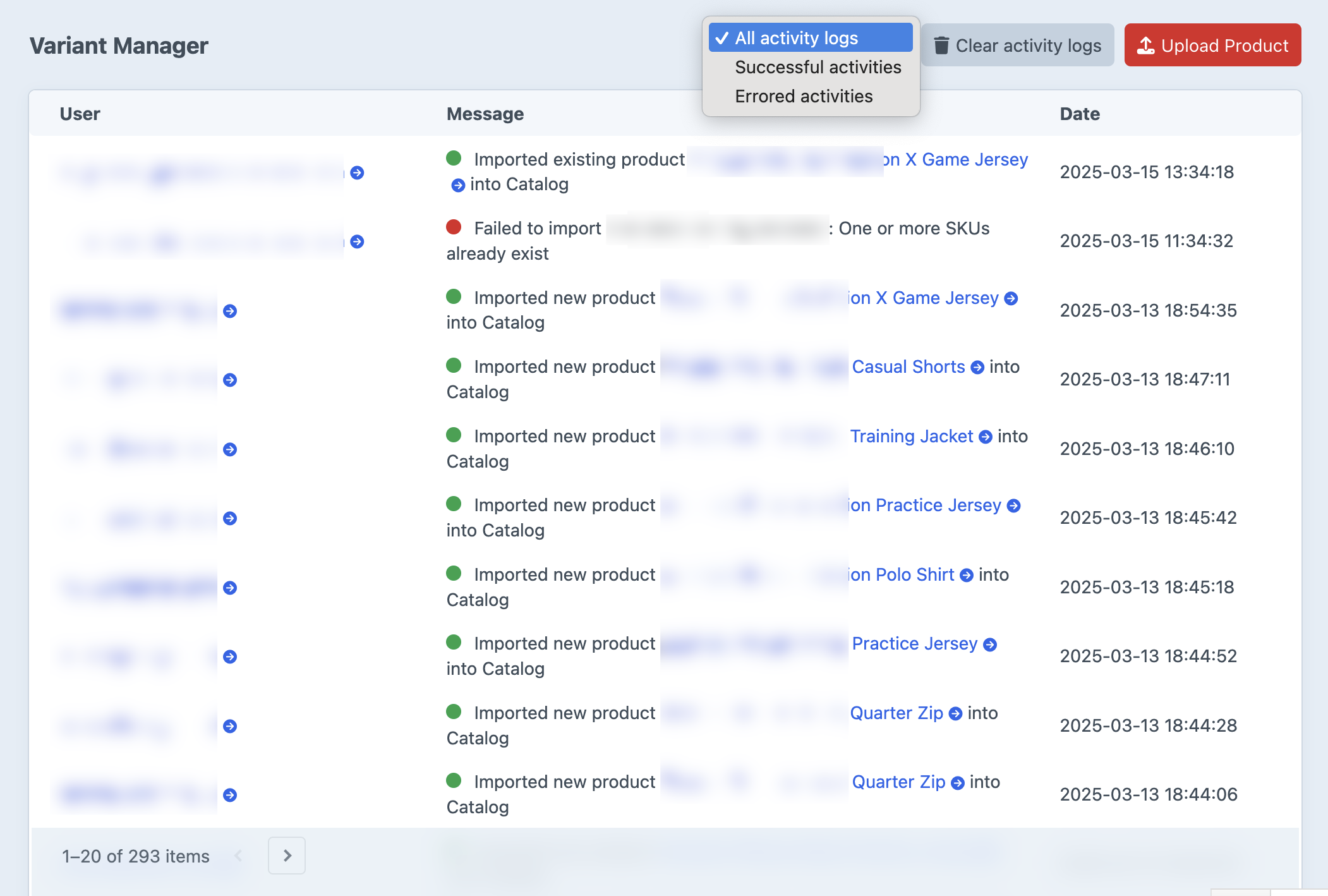
The dropdown next to the Clear activity logs button filters by status:
- All activity logs
- Successful activities
- Errored activities
Filter to Errored activities while debugging a failed batch.
Retention
Rows are kept for as long as the activityLogRetention config setting says. Default: 30 days.
Cleanup happens two ways:
- Automatically, during Craft’s garbage collection (
./craft gcor whenever Craft schedules it). - Manually, by running the cleanup console command.
To keep logs forever, set activityLogRetention to false or null in config/variant-manager.php. The retention setting accepts any relative date string PHP understands: 1 hour, 1 day, 1 week, 1 month, 1 year.
Clearing the log
Two ways:
-
From the dashboard: click Clear activity logs and confirm. Wipes every row regardless of age. Requires the
variant-manager:managepermission. -
Via console:
# Delete rows older than activityLogRetention (the default cleanup).
./craft variant-manager/activities/clear

# Wipe every row regardless of age.
./craft variant-manager/activities/clear --all
Either way, cleared rows are gone permanently; there is no trash to restore from.
Permissions
variant-manager:manage is required to clear logs from the dashboard. Anyone with accessPlugin-variant-manager can read the log.
See permissions.