Discounts
How to create, order, and structure discounts. Advanced Discounts -> Discounts lists every discount in the order the plugin evaluates them.
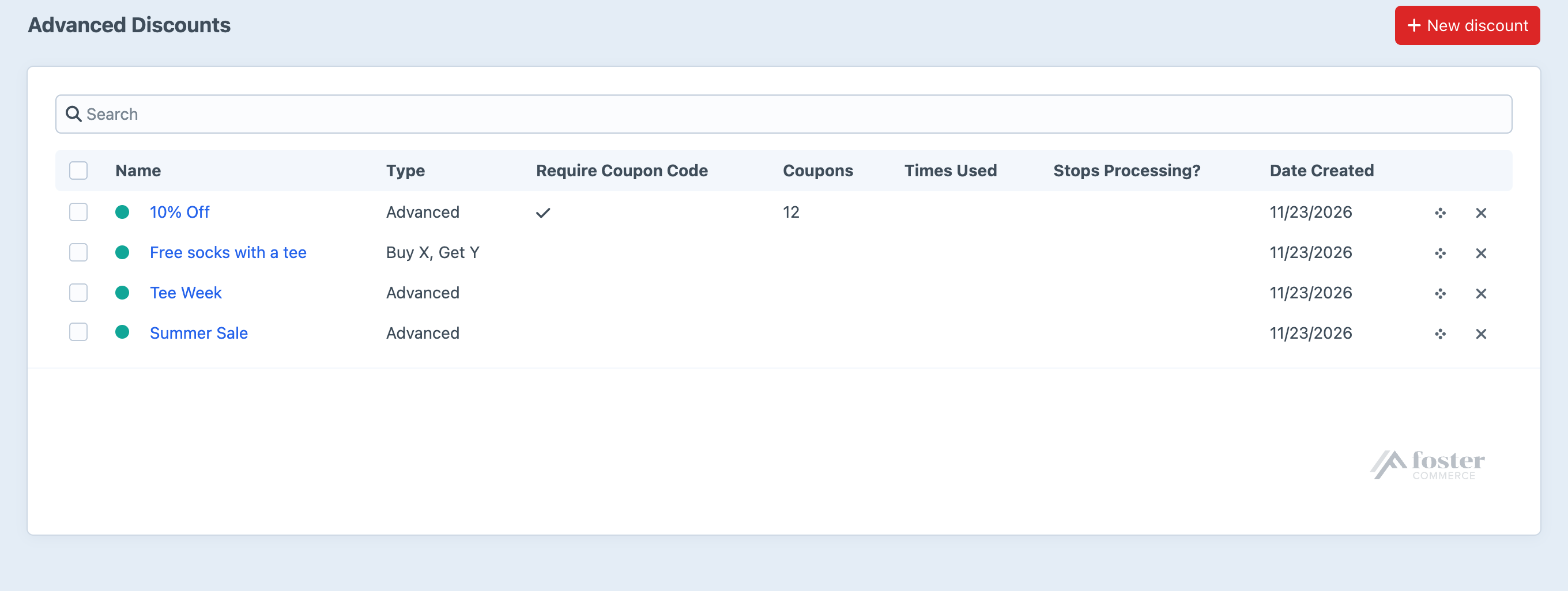
A discount holds optional Global Cart Conditions, optional Global Product Conditions, and any number of groups. Each group pairs its own cart rules with the actions and messages they trigger. One discount can hold a whole tiered sale: 10% off at $100, 15% at $200, 20% at $500.

Creating a discount#
Click New discount.
The plugin adds a new discount to the top of the list and evaluates discounts top down. To change the order, drag discounts on the index.
Start from a preset#
To fill a new discount with a ready-made setup, choose one from Start from a preset. Every field stays editable.
| Preset | Cart Actions |
|---|---|
| Free items | Line Items, all line items, 100% |
| Free shipping | Shipping, Any method, 100% |
| Free order | Line Items, all line items, 100%, plus Shipping 100% |
Each preset is an Advanced discount with one group, no conditions, and Require Coupon Code off. The group’s Discount Name is the preset’s name, which customers see on the order. Saved as is, the discount applies to every cart. Add a coupon code or conditions to limit it.
Each preset fills the discount’s Name and the group’s Discount Name with the preset’s name.
Under Before discounts Tax Basis, Free items and Free order still charge tax, because the discount comes off after tax.
Choosing a preset reloads the page, which clears fields already filled in.
Name#
Names the discount in the control panel. Customers see each group’s Discount Name instead.
Require Coupon Code#
Turn on Require Coupon Code to gate the discount behind a code. See coupon codes.
Type#
Advanced covers standard sales and promotions.
Buy X, Get Y covers “buy one, get one free” style offers. Choose the products the customer buys and the products they get. The plugin counts the chosen buy products together.
Changing Type replaces the groups with a new, empty set for that type. Switching back before you save restores the earlier groups. When you click Save discount, the plugin keeps only the groups of the selected type. Saving a type other than Advanced clears Global Product Conditions.
Tax Basis#
Sets whether tax is calculated before or after the discount comes off. Default: Use plugin default. See the configuration reference.
Stop Processing Further Discounts#
When this discount applies, the plugin skips the Advanced Discounts discounts below it. Commerce’s own discounts still apply.
Conditions#
Global Cart Conditions and each group’s Cart Conditions decide when a discount applies. Global Product Conditions decide which line items the discount covers.
Global Cart Conditions#
Global Cart Conditions gate the whole discount, such as a date range covering the first week of August. They are optional, and you can add more than one. They use the same rules as a group’s Cart Conditions.
Global Product Conditions#
Global Product Conditions limit an Advanced discount to line items for matching products or variants. The field appears only when Type is Advanced, because Buy X, Get Y names its own products. Click Limit to, choose Products or Variants, then add rules for that type. The rules include Commerce’s product or variant rules, one rule per custom field, and Product or Variant for choosing items directly. For example, choose Products and add a rule for the field that marks parts.
To add another row, click OR. A line item matches when any row matches it. Each row needs at least one rule.
Only matching line items count toward the discount’s conditions and the amounts in its messages. Only matching line items get the discount. A Shipping action takes its discount off the whole shipping cost, and only when the cart has at least one matching line item. Line items that do not match can still get later discounts, unless this discount has Stop Processing Further Discounts on.
To cover every product, leave Global Product Conditions empty.
Cart Conditions#
The plugin tests a group’s Cart Conditions only after the discount’s Global Cart Conditions match. For the rules and how they combine, see cart conditions.
Discount groups#
To add a group, click Add group.
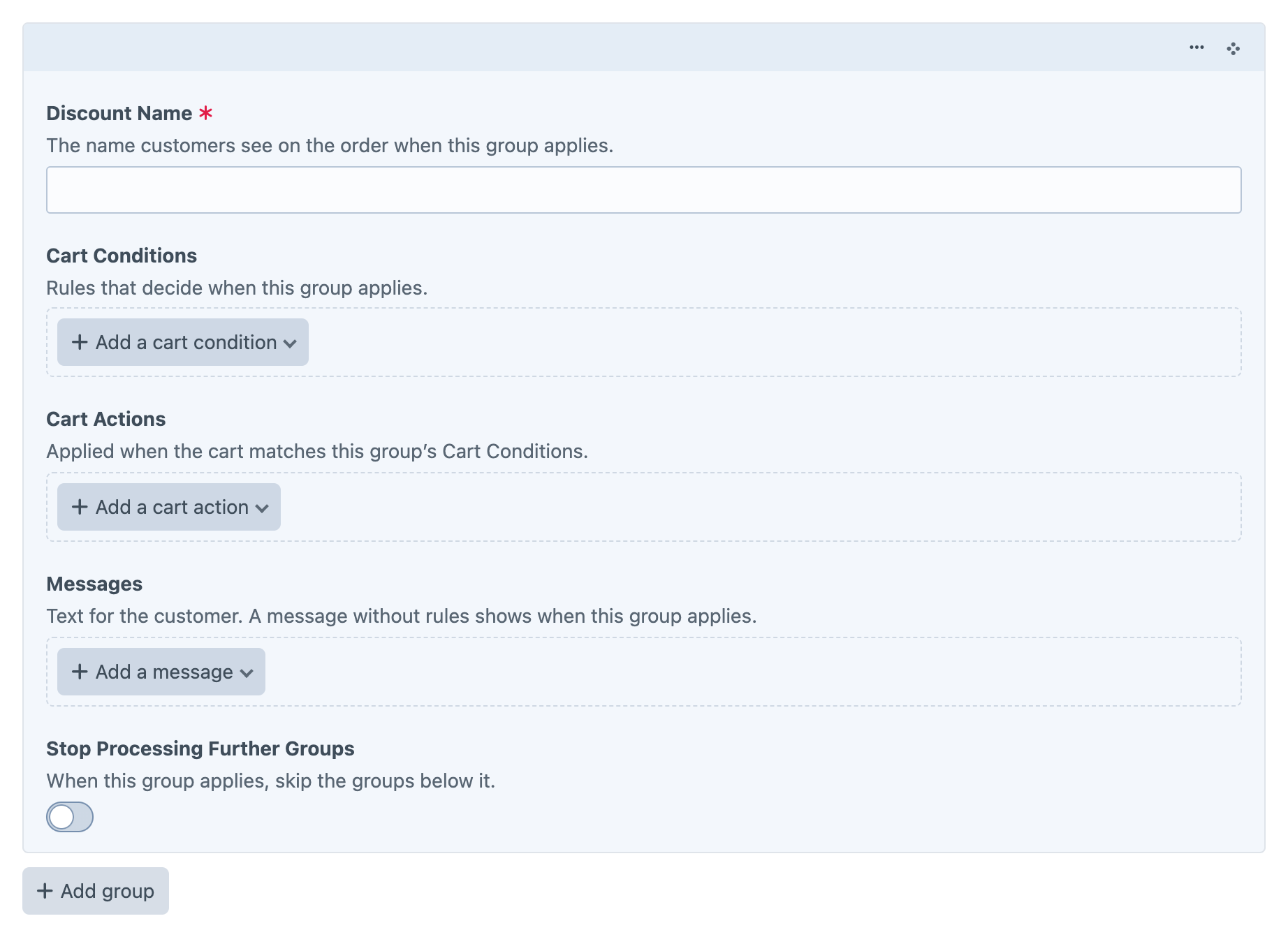
Discount Name names the adjustment on the order when this group applies. Every group needs one.
Cart Conditions set the rules.
Cart Actions set what the group discounts when those rules match.
Messages tell the customer they are close to, or have reached, the threshold.
Stop Processing Further Groups skips every group below this one once this group applies.
Group controls#
Each group’s actions menu holds these controls. You can also drag a group to a new position.
- Collapse and Open hide and show the group’s body.
- Disable takes the group out of the discount: it does not discount the order or show messages, whatever its conditions say. Disabling collapses the group and marks it with a gray dot. Enable turns the group back on.
- Move up and Move down reorder groups. Order decides which group wins when Stop Processing Further Groups is on.
- Delete removes the group from the screen. The group is removed from the discount when you click Save discount.

Text for each site#
On a multi-site install, three fields can be set for each site: the discount’s Name, each group’s Discount Name, and each message. These fields show Craft’s translation icon. Every other setting, including groups, conditions, actions, and coupons, is shared by all sites. A group added or deleted while editing one site is added to or deleted from every site.
To edit a site’s text, choose the site from the site menu on Advanced Discounts -> Discounts or of a discount. The site stays selected as you move between the index and a discount, and the index lists each discount’s name for that site.
New discount opens on the primary site, because the primary site’s Name is required.
Blank text uses the primary site’s text#
When a site’s field is blank, that site uses the primary site’s text, which the field shows as its placeholder. A blank field keeps following the primary text: after you edit the primary Message, every site without its own message shows the new wording.
Text you enter for a site does not change when the primary text changes. When you change the primary wording, update each site’s text as well.
The order’s site sets which text the customer sees. For the name on the order’s adjustment, the plugin uses the first of these that is set:
- The group’s Discount Name for the order’s site.
- The group’s Discount Name on the primary site.
- The discount’s Name for the order’s site, for a group saved before Discount Name was required.
A completed order keeps the adjustment name it was placed with.